Creating Java and JavaScript Adapters (10.1 release)
Release 10.1 (Beta)
Jump to
- Installing Maven
- Creating Adapters using PMF CLI
- Creating Adapters Using Maven Archetype “adapter-maven-archetype”
- File structure
- Provisioning PMF dependencies
- Build and deploy Adapters
- Provisioning dependencies
- Grouping Adapters in a single Maven project
- Downloading or deploying Adapters using PMF Operations Console
Installing Maven
In order to create an adapter, you first need to download and install Maven. Go to the Apache Maven website and follow the instructions how to download and install Maven.
Creating Adapters using PMF CLI
Install PMF CLI
Follow the installation instructions in the Downloads page to Install PMF CLI.
Prerequisite: To create adapters using the Developer CLI, Maven must be installed.
Creating an Adapter
To create a Maven adapter project, use the pmfdev adapter create command.
You can choose to run the command interactively or directly.
The pmfdev adapter create command will create adapters that will be only compatible with PMF 10.1.0 and later releases.
Interactive Mode
-
Open a Command-line window and run:
pmfdev adapter create -
Enter an adapter name. For example:
? Enter Adapter Name: SampleAdapter -
Select an adapter type using the arrows and the enter keys:
? Select Adapter Type:
   HTTP
   SQL
❯ Java
* Select `HTTP` to create a JavaScript HTTP adapter * Select `SQL` to create a JavaScript SQL adapter * Select `Java` to create a Java adapter -
Enter an adapter package (this option is valid for Java adapters only). For example:
? Enter Package: com.mypackage -
Enter a Group Id of the Maven project to be build. For example:
? Enter Group ID: com.mycompany
Direct Mode
Replace the placeholders with the actual values and run the command:
pmfdev adapter create <adapter_name> -t <adapter_type> -p <adapter_package_name> -g <maven_project_groupid>
Creating Adapters Using Maven Archetype “adapter-maven-archetype”
The “adapter-maven-archetype” is a PMF-provided archetype, that based on the Maven archetype toolkit, and is used by Maven in order to create the adapter Maven project.
To create a Maven adapter project, use the archetype:generate Maven command. Once the command is executed, Maven will download (or use the local repositories mentioned above) required files in order to generate the adapter Maven project.
You can choose to run the command interactively or directly.
Interactive Mode
-
From a Command-line window, navigate to a location of your choosing.
This is also where the Maven project will be generated. -
Replace the DarchetypeArtifactId placeholder with the actual value and run:
mvn archetype:generate -DarchetypeGroupId=com.ibm.mfp -DarchetypeArtifactId=<adapter artifact-type ID> -DarchetypeVersion=10.1.0 -DgroupId=<adapter group ID> -DartifactId=<adapter artifact ID> [-Dversion=<Maven project version>] [-Dpackage=<adapter Java package>] -DarchetypeCatalog=localWhere,
archetypeGroupId- The group ID of the MobileFirst adapter Maven archetype. Always set this value to “com.ibm.mfp”.archetypeArtifactId- The artifact ID of the MobileFirst adapter Maven archetype. Replace the {adapter artifact-type ID} placeholder with one of the following values, according to your target adapter type,adapter-maven-archetype-http- Creates a JavaScript adapter with HTTP connectivity.adapter-maven-archetype-sql- Creates a JavaScript adapter with SQL connectivity.adapter-maven-archetype-java- Creates a Java adapter.
archetypeVersion- The archetype version, which identifies the MobileFirst adapter archetype. Set this value to 10.1.0.groupId- The group ID of the new Maven project. Replace the {adapter group ID} placeholder with your preferred group ID.artifactId- The artifact ID of the new Maven project. This value will be used as the name of your adapter. Replace the {adapter artifact ID} placeholder with your preferred ID (name).version- The version number to set for your new Maven project. Replace the {Maven project version} placeholder with your preferred version number. The default value is “1.0-SNAPSHOT”.package- The name of the adapter Java package. Replace the {adapter Java package} placeholder with the name of your selected Java package. The default package name is the value of thegroupIdproperty. This property is applicable only when you create a Java adapter (archetypeArtifactId=adapter-maven-archetype-java).
-
Enter a Group Id of the Maven project to be build. For example:
Define value for property 'groupId': : com.mycompany -
Enter an Artifact Id of the Maven project which will later be used also as the adapter name. For example:
Define value for property 'artifactId': : SampleAdapter -
Enter a Maven project version (the default is
1.0-SNAPSHOT). For example:Define value for property 'version': 1.0-SNAPSHOT: : 1.0 -
Enter an adapter package name (the default is the
groupId). For example:Define value for property 'package': com.mycompany: : com.mypackage -
Enter
yto confirm:Confirm properties configuration: groupId: com.mycompany artifactId: SampleAdapter version: 1.0 package: com.mypackage archetypeVersion: 9.1.0 Y: : yFor more information, see Provisioning PMF dependencies.
Direct Mode
Replace the placeholders with the actual values and run the command:
mvn archetype:generate -DarchetypeGroupId=com.ibm.mfp -DarchetypeArtifactId=<adapter type artifact ID> -DgroupId=<maven_project_groupid> -DartifactId=<maven_project_artifactid> -Dpackage=<adapter_package_name>
For more information about the archetype:generate command see the Maven documentation.
File structure
After creating the adapter the result will be a Maven project containing a src folder and a pom.xml file:
SampleAdapter
├── pom.xml
├── src
Provisioning PMF dependencies
With the PMF 10.1.0 release, PMF artifacts are no longer available on the Maven Central. You can share PMF Maven artifacts in your organization’s internal repository.
Note: The “Offline” mode is mandatory for the PMF 10.1.0 release.
- Go to the Downloads page and download the Persistent Mobile Foundation Developer Kit Installer.
-
Start PMF and in a browser, load the PMF Operations Console from the following URL:
http://<your-server-host:server-port>/mfpconsole. - Click Download Center. Under Tools → Adapter Archetypes, click Download. The
pmf-maven-central-artifacts-adapter.ziparchive is downloaded. - Add the adapter archetypes and security checks to the internal Maven repository by running the install.sh script for Linux and Mac.
- The following JAR files are required by
adapter-maven-api. Make sure they are located either in developers’ local.m2folder, or in the Maven repository of your organization.jakarta.ws.rs:jakarta.ws.rs-api:4.0.0Jakarta.platform:jakarta.jakartaee-web-api:11.0.0org.apache.httpcomponents:httpclient:4.5.15org.apache.httpcomponents:httpcore:4.4.12javax.xml:jaxp-api:1.4.2org.mozilla:rhino:1.7.15.1io.swagger.core.v3:swagger-annotations-jakarta:2.2.40com.ibm.websphere.appserver.api:com.ibm.websphere.appserver.api.json:1.0jakarta.servlet:jakarta.servlet-api:6.1.0
Build and deploy Adapters
Build
-
Using the PMF CLI - Run the
adapter buildcommand from the project’s root folder.pmfdev adapter build -
Using Maven - The adapter is built each time you run the
installcommand to build the Maven project.mvn install
Build All
If you have multiple adapters in a filesystem folder and you’d like to build all of them, use:
pmfdev adapter build all
The outcome is an .adapter archive file which can be found in the target folder of each adapter:
SampleAdapter
├── pom.xml
├── src
└── target
    ├── adapter
    └── SampleAdapter.adapter
Deploy
-
The pom.xml file contains the following
properties:<properties> <!-- parameters for deploy mfpf adapter --> <mfpfUrl>http://localhost:9080/mfpadmin</mfpfUrl> <mfpfUser>admin</mfpfUser> <mfpfPassword>admin</mfpfPassword> <mfpfRuntime>mfp</mfpfRuntime> </properties>- Replace localhost:9080 with your PMF IP address and port number.
- Optional. Replace the mfpfUser and mfpfPassword default values with your admin user name and password.
- Optional. Replace the mfpfRuntime default value with your runtime name.
-
Run the deploy command from the project’s root folder:
- Using the PMF CLI:
pmfdev adapter deploy -xThe
-xoption deploys the adapter to the PMF that is specified in adapter’s pom.xml file.
If the option is not used, the CLI will use the default server specified in the CLI settings.For more CLI deployment options run the command:
pmfdev help adapter deploy.
-
Using Maven:
mvn adapter:deploy
Deploy All
If you have multiple adapters in a filesystem folder and you’d like to deploy all of them, use:
pmfdev adapter deploy all
Note: You can also build and deploy the adapter using a single command:
mvn install adapter:deploy
Deploying to different runtimes
If you run multiple runtimes, see Registering applications and deploying adapters to different runtimes.
Provisioning dependencies
In order to use an external library in your adapter, follow one of the following suggested instructions:
Adding a local dependency
- Add a lib folder under the root Maven project folder and put the external library in it.
- Add the library path under the
dependencieselement in the Maven project’s pom.xml file.
For example:
<dependency>
<groupId>sample</groupId>
<artifactId>com.sample</artifactId>
<version>1.0</version>
<scope>system</scope>
<systemPath>${project.basedir}/lib/</systemPath>
</dependency>
Adding an external dependency
- Search online repositories such as The Central Repository for the dependency.
- Copy the POM dependency information and paste it under the
dependencieselement in the Maven project’s pom.xml file.
The following example uses the cloudant-client artifactId:
<dependency>
  <groupId>com.cloudant</groupId>
  <artifactId>cloudant-client</artifactId>
  <version>1.2.3</version>
</dependency>
For more information about dependencies see the Maven documentation.
Grouping Adapters in a single Maven project
If you have several adapters in your project you may want to arrange them under a single Maven project. Grouping adapters provides benefits such as build all, deploy all and sharing dependencies. You can also build all and deploy all adapters even if they are not grouped in a single Maven project using the pmfdev adapter build all and pmfdev adapter deploy all CLI commands.
To group adapters you need to:
- Create a root folder and call it, for example, “GroupAdapters”.
- Put the Maven adapter projects in it.
-
Create a pom.xml file:
<project xmlns="http://maven.apache.org/POM/4.0.0" xmlns:xsi="http://www.w3.org/2001/XMLSchema-instance" xsi:schemaLocation="http://maven.apache.org/POM/4.0.0 http://maven.apache.org/xsd/maven-4.0.0.xsd"> <modelVersion>4.0.0</modelVersion> <groupId>com.sample</groupId> <artifactId>GroupAdapters</artifactId> <version>1.0-SNAPSHOT</version> <packaging>pom</packaging> <modules> <module>Adapter1</module> <module>Adapter2</module> </modules> <!-- Deploy Adapter parameters --> <properties> <mfpfUrl>http://localhost:9080/mfpadmin</mfpfUrl> <mfpfUser>admin</mfpfUser> <mfpfPassword>admin</mfpfPassword> <mfpfRuntime>mfp</mfpfRuntime> </properties> <build> <plugins> <plugin> <groupId>com.ibm.mfp</groupId> <artifactId>adapter-maven-plugin</artifactId> <extensions>true</extensions> <version>10.1.0</version> <!-- Apache Maven 3.9.x dependencies --> <dependencies> <dependency> <groupId>org.codehaus.plexus</groupId> <artifactId>plexus-utils</artifactId> <version>4.0.2</version> </dependency> </dependencies> </plugin> </plugins> </build> </project> - Define a
groupIdelement of your choice - Add an
artifactIdelement - the root folder’s name - Add a
moduleelement for each adapter - Add the
buildelement - Optional. Replace localhost:9080 with your specific PMF IP address and port number.
- Optional. Replace the
mfpfUserandmfpfPassworddefault values with your admin user name and password. - Optional. Replace the
mfpfRuntimedefault value with your runtime name. - To build or deploy, run the Maven commands from the root “GroupAdapters” project.
Downloading or deploying Adapters using PMF Operations Console
- Open your browser of choice and load the PMF Operations Console using the address
http://<IP>:<PORT>/mfpconsole/. - Click on the “New” button next to Adapters. You have two options to create an adapter:
- Using Maven or PMF CLI as previously explained above.
- Download a template adapter project (step 2).
- Build the adapter Using Maven or PMF CLI.
- Choose one of the following ways to upload the generated .adapter file which can be found in the target folder of the adapter project:
- Click on the Deploy Adapter button (step 5).
- Drag and drop the file into the “Create new” adapter screen.
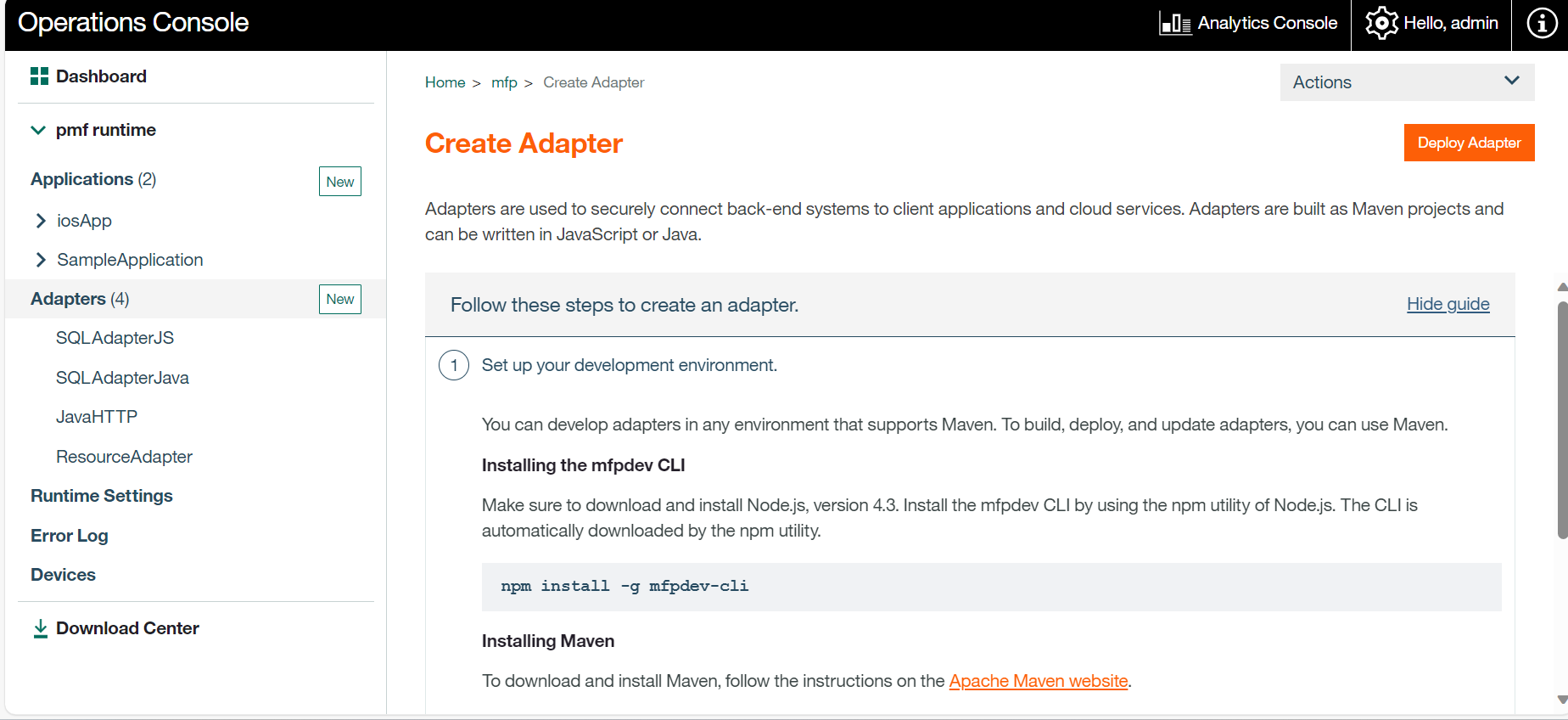
- After successfully deploying the adapter, the details page will be displayed containing the following tabs:
- Configurations - properties defined by the adapter XML file. Here you can change the configurations without having to deploy again.
- Resources - a list of the adapter resources.
- Configurations Files - adapter configuration data, to be used in DevOps environments.
Tutorials to follow next
- Learn about Java adapters
- Learn about JavaScript adapters
- Develop adapters in IDEs
- Testing and debugging adapters
- Review all Adapters tutorials