Adding the Persistent Mobile Foundation SDK to .NET MAUI Applications
Release 9.0.6
The PMF SDK consists of a collection of dependencies that are packaged inside a NuGet package that can be added to your Visual Studio project.
The packages correspond to core functions and other functions:
-
PersistentMobileFoundation.Android- Contains MobileFirst client SDK libraries which implements client-to-server connectivity, handles authentication and security aspects, resource requests, and other required core functions along with JSONStore framework. Also, contains the push notification framework.
-
PersistentMobileFoundation.ios - Contains MobileFirst client SDK libraries which implements client-to-server connectivity, handles authentication and security aspects, resource requests, and other required core functions along with JSONStore framework. Also Contains the push notification framework. For more information, review the Notifications tutorials.
In this tutorial you learn how to add the PMF Native SDK by using NuGet Package Manager to a new or existing MAUI (Android/iOS) application. You also learn how to configure the PMF to recognize the application.
Prerequisites
- Visual Studio Community 2022 Version 17.6.14 (Build 413) installed on the developer workstation for macOS.
- Microsoft® Visual Studio Enterprise 2022 Version installed on the developer workstation for Windows OS.
- A local or remote instance of PMF Server is running.
- Read the Setting up your PMF development environment and Setting up your .NET MAUI development environment tutorials.
Jump to:
Add .NET MAUI SDK to application
Follow the instructions below to add the PMF Native SDK to a new or existing Visual Studio project, and to register the application to the PMF.
Before you start, make sure that the PMF Server is running.
If using a locally installed server:
From a Command-line window, navigate to the server’s folder and run the command:
./run.sh
- Create an application. Create a MAUI solution using Visual Studio or use an existing one.
-
Download .NET MAUI SDKs. You can download MAUI SDKs (PersistentMobileFoundation.Android and PersistentMobileFoundation.ios) from this path.
Download the
SDK.zipfile from the PMF Operations Console → Download Center → SDKs tab. -
Add .NET MAUI SDKs to application.
After you have downloaded MAUI SDKs from the location, keep those SDKs in a convenient folder location to add them through the package source.
Configuring new package source
-
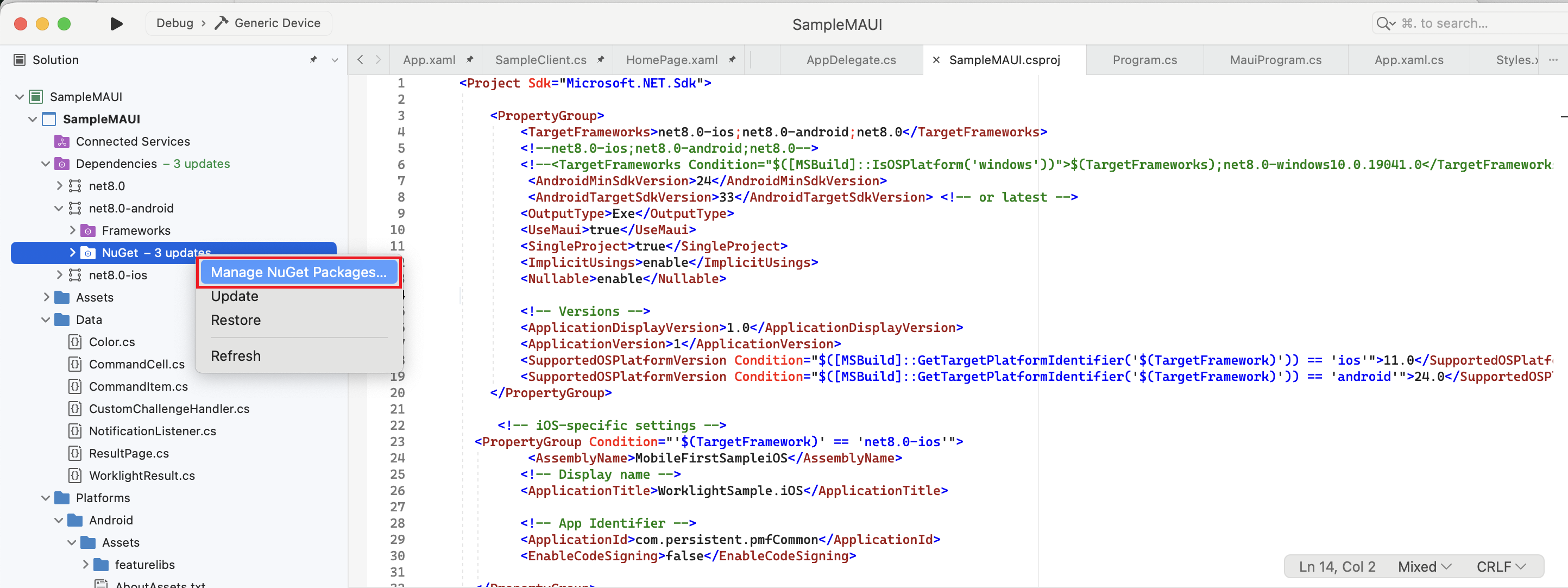
Right-click on Packages folder of the .NET MAUI Project and select Manage NuGet Packages option.
-
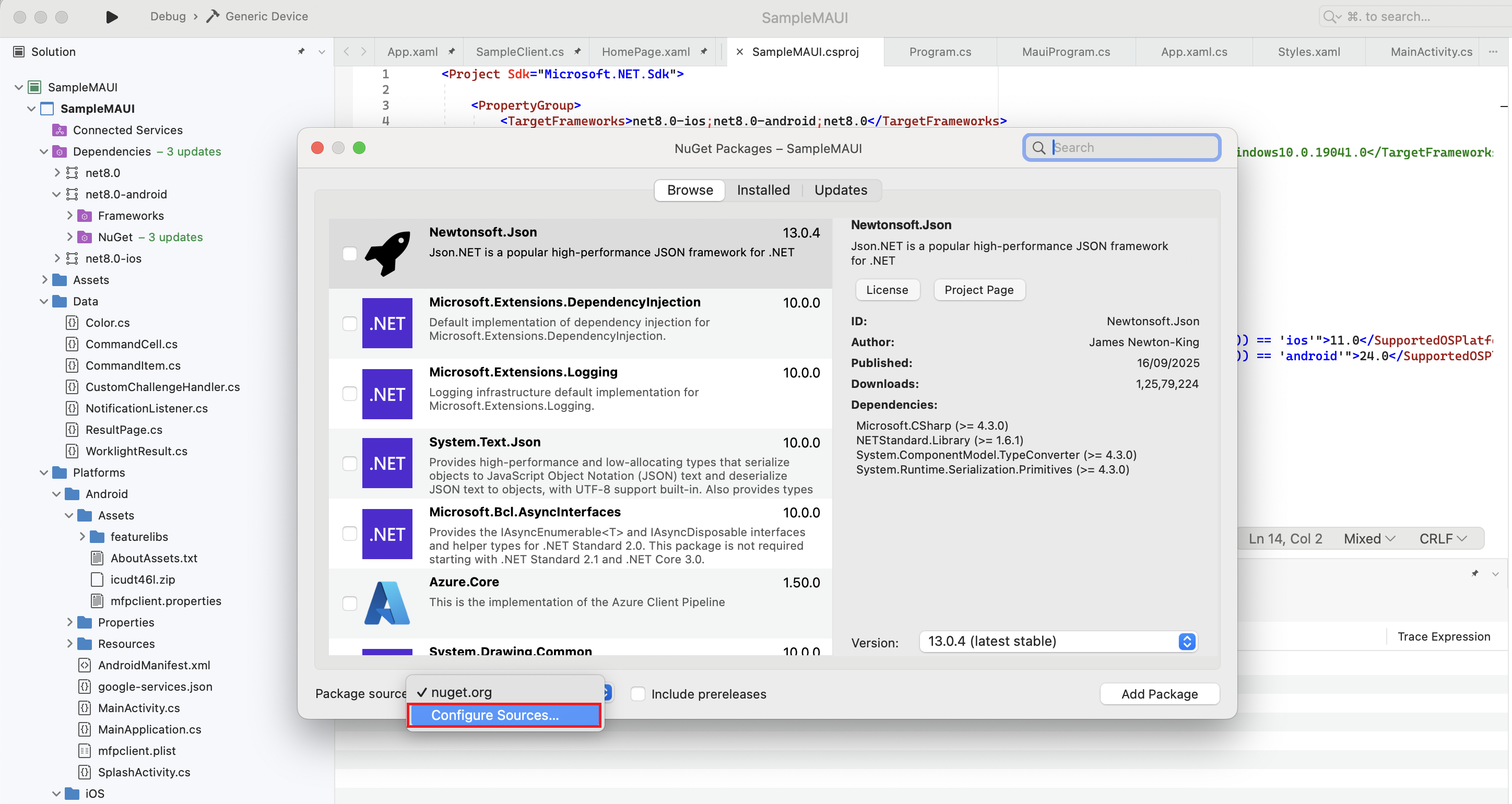
Select Configure Resources from the pop-up window.
-
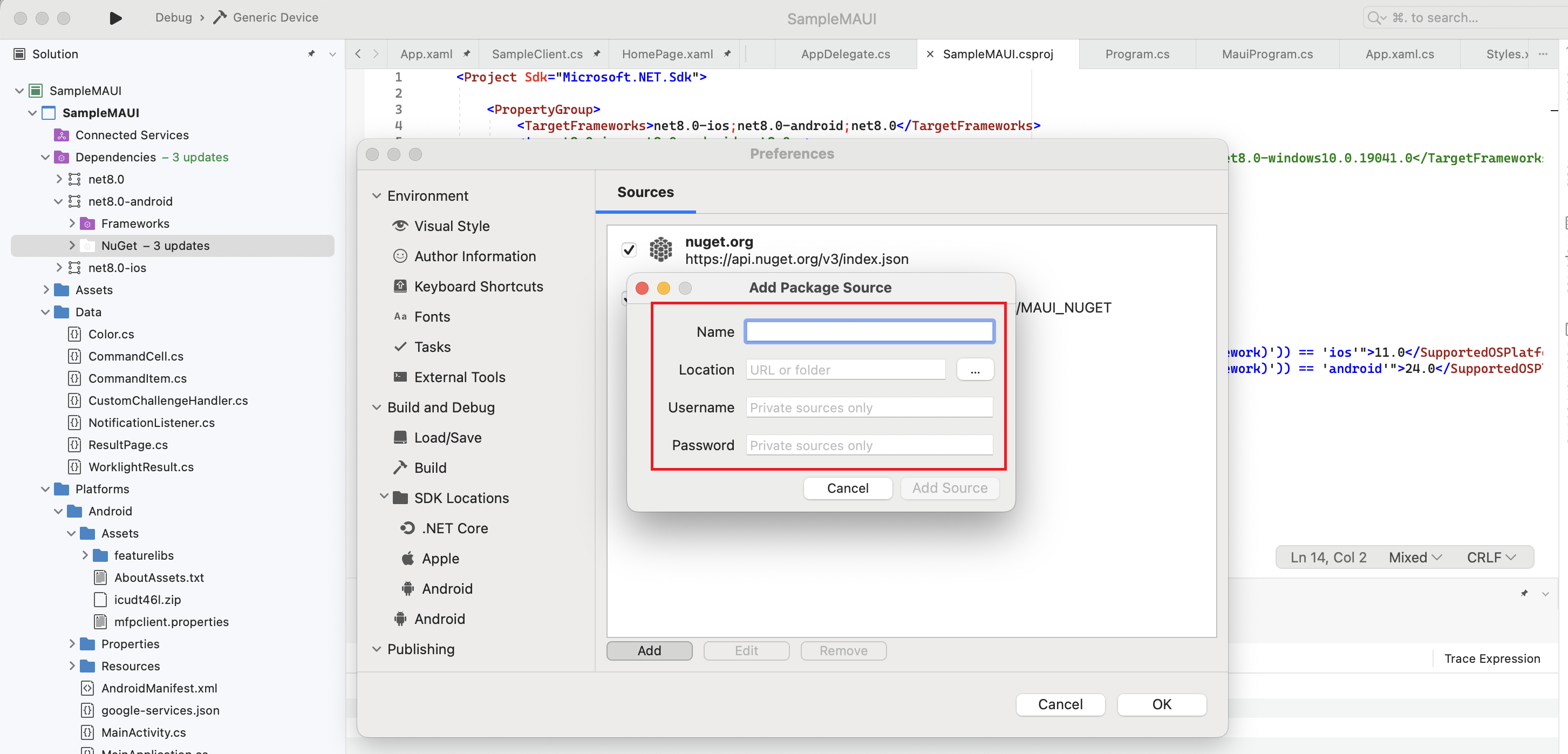
Specify following inputs to add new package resource.
- Name : Package Resource Name
- Location : Path to the folder where you have kept the Persistent Mobile Foundation Nuget files.
- Username : Optional
- Password : Optional
-
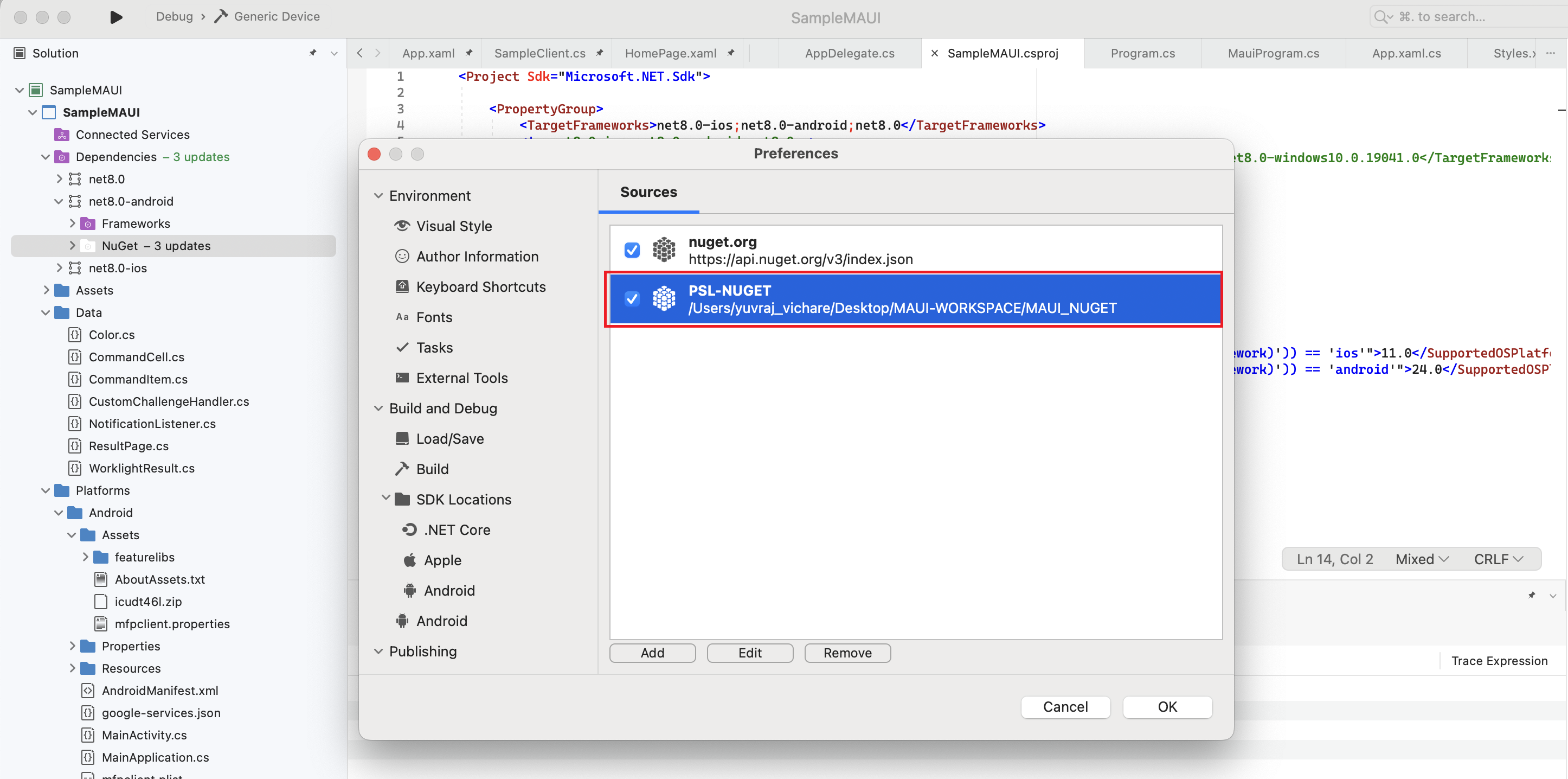
The new package resource is listed as shown.
-
Select your new package resource from the Package source drop-down.
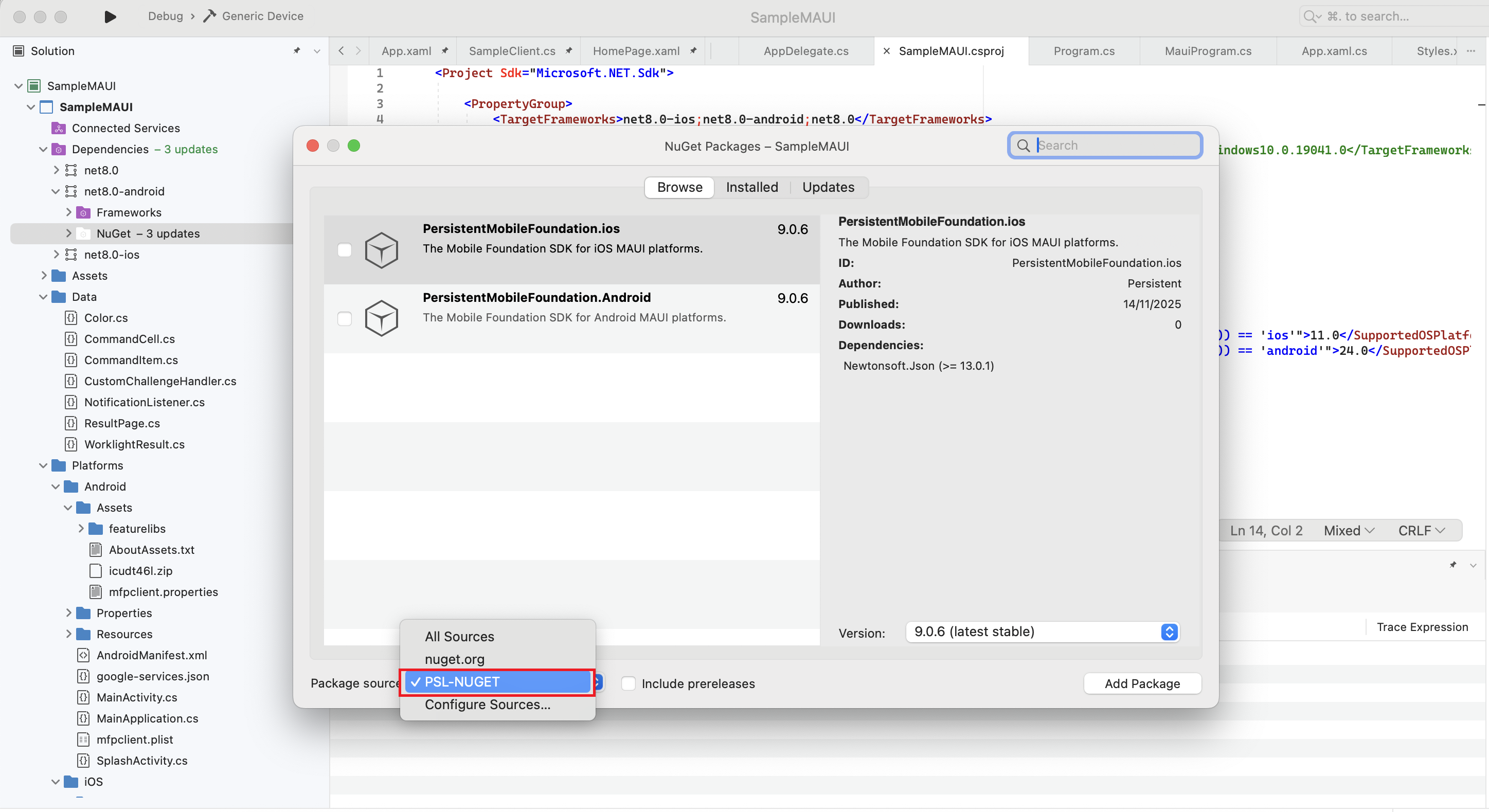
Above image shows PMF_Nuget pointing a custom local path to Nuget files.
Updating the .NET MAUI Application .csproj file
Update the .csproj file to specify platform-specific references for the Persistent Mobile Foundation SDK:
Android-specific reference
<ItemGroup Condition="'$(TargetFramework)' == 'net9.0-android'">

<PackageReference Include="PersistentMobileFoundation.Android" Version="9.0.6" />

</ItemGroup>
iOS-specific reference
<ItemGroup Condition="'$(TargetPlatformIdentifier)' == 'iOS'">

<PackageReference Include="PersistentMobileFoundation.ios" Version="9.0.6" />

</ItemGroup>
Registering the application
- Load the PMF Operations Console.
-
Click New next to Applications to register a new application and follow the on-screen instructions.
Android and iOS applications have to be registered separately. This ensures both the Android application and iOS application can connect successfully to the server.
The registration details for Android and iOS applications can be found in the
AndroidManifest.xmlandInfo.plistrespectively. - After the application is registered, navigate to the application’s Configuration Files tab and copy or download the
mfpclient.plistandmfpclient.propertiesfile. Follow the onscreen instructions to add the file to your project.
Completing the setup process
mfpclient.plist
- Right-click the .NET MAUI iOS project and select Add files. Browse and find the
mfpclient.plistto the root of the project. If prompted, choose Copy file to project. - Right-click the
mfpclient.plistfile and select Build action. Choose Content.
mfpclient.properties
- Right-click the Assets folder of .NET MAUI Android project and select Add files. Browse and find the
mfpclient.propertiesto the folder. If prompted, choose Copy file to project. - Right-click the
mfpclient.propertiesfile and select Build action. Choose Android asset.
Referencing the SDK
Whenever you want to use the PMF Native SDK, make sure that you import the PMF framework:
CommonProject
using Worklight;
iOS
using MobileFirst.Xamarin.iOS;
Android
using Worklight.Xamarin.Android;
Updating the PMF Native SDK
To update the Persistent Mobile Foundation Native SDK with the latest release, remove the older nuget and add a new nuget.
Generated PMF Native SDK artifacts
mfpclient.plist
This file defines the client-side properties used for registering your iOS app on the PMF.
| Property | Description | Example values |
|---|---|---|
| protocol | The communication protocol with the PMF. | http or https |
| host | The host name of the PMF. | 192.0.2.63 |
| port | The port of the PMF. | 9080 |
| wlServerContext | The context root path of the application on the PMF. | /mfp/ |
| languagePreferences | Sets the default language for client sdk system messages. | en |
Tutorials to follow next
With the PMF Native SDK now integrated, you can now:
- Review the Adapters development tutorials
- Review the Authentication and security tutorials
- Review the Notifications tutorials